Playing Cursed Tank Simulator on a phone or tablet used to feel like a compromise, but the official Roblox page confirms mobile and tablet support is built into the game, with the caveat that you need a high-spec device from 2022 or later. That single line changes everything for players who travel, share a PC, or simply prefer grinding from the couch. This cursed tank simulator mobile guide walks you through the exact settings, control tweaks, and farming routines that make touchscreen play not just viable, but genuinely competitive. You will learn which hidden features translate well to mobile, how to structure solo sessions for maximum efficiency, and why the grinding fundamentals matter more on a small screen than they ever did on desktop. If you have been struggling with sluggish aiming or awkward camera control, the fixes are simpler than you think.
According to the official Cursed Tank Simulator HOLD THE LINE Roblox game page, the simulator’s core loop is built around grinding tank upgrades and holding waves against increasingly difficult enemies, with the game’s mechanics directly tied to your total damage output and defense stats.
Mobile Performance Tuning and Device Requirements
Press F1 and the HELP Overlay: Decoding the Mobile Control Reference
On mobile, the in-game HELP menu is your primary manual, but the fastest way to access it is by tapping the HELP button located in the garage. Unlike PC players who can press F1, mobile users must rely on this on-screen button to pull up the controls and game mechanics reference. The overlay details the specific touch gestures for turret rotation, firing, and throttle control. Before your first PvP match, spend two minutes in the garage reviewing this overlay to memorize the button layout, preventing accidental misfires during combat.
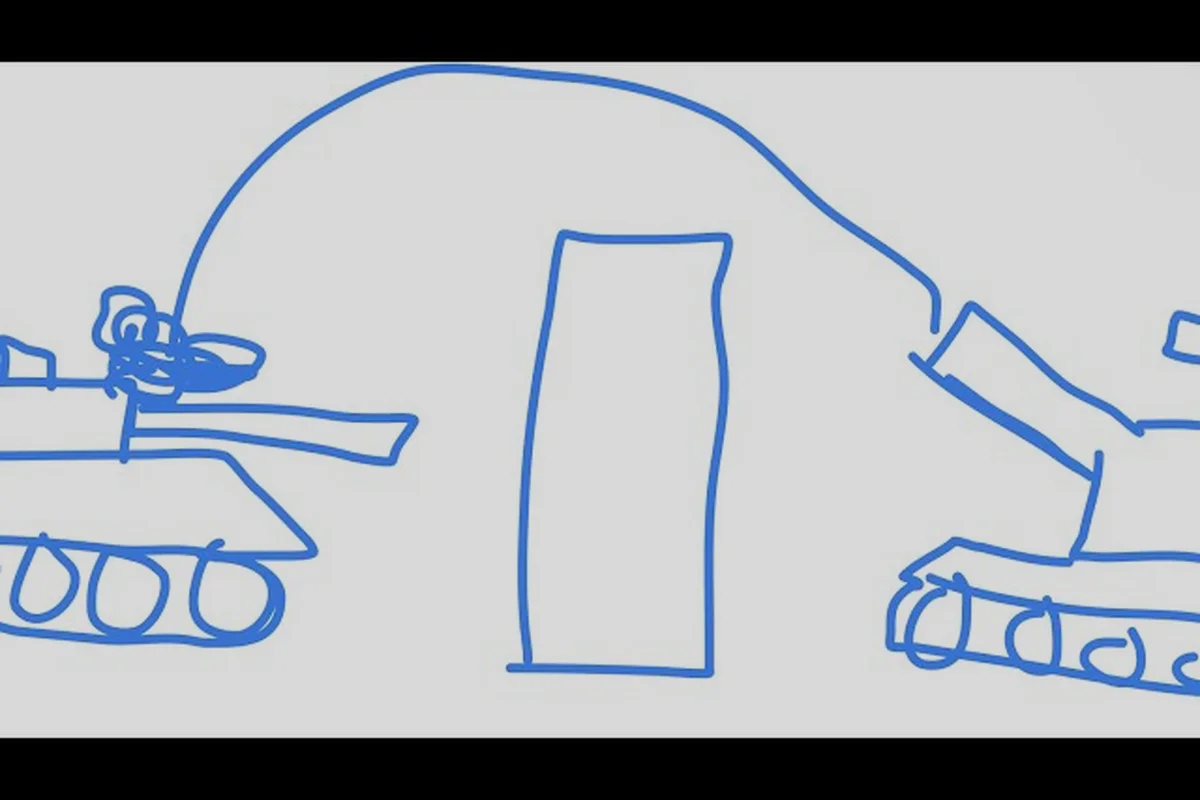
Indirect Fire on Mobile: A Step-by-Step Aiming Guide
Indirect fire is a powerful technique for mobile players, allowing you to lob shells over obstacles. To execute this, you must first adjust your aim to a high angle, which is done by dragging your fire button to set the trajectory. The key is to use the minimap to target enemy positions that are not in your direct line of sight. For example, if an enemy is behind a hill, aim your cannon at a 45-degree angle and fire; the shell's arc will clear the obstacle and land on the target. This requires practice to master the shell drop-off, but it is a crucial skill for mobile players who cannot rely on precise turret adjustments.
The biggest mistake new mobile players make is jumping into battle without adjusting their graphics and control settings first. According to the official game page, the developer explicitly states that high-spec devices from 2022 onwards are needed for smooth play, which means older phones will struggle regardless of how much you optimize. Start by opening the in-game settings menu and switching the graphics quality to Performance Mode rather than the default balanced preset, because the difference in frame rate directly affects your ability to track enemy tanks during fast engagements. You should also disable shadows and particle effects entirely, since these two options consume the most GPU resources on mobile chipsets.
Beyond the basic graphics sliders, Roblox itself offers a device-specific optimization layer that many players overlook. If you are on iOS, enable Low Power Mode before launching the game, as this prevents thermal throttling during longer sessions; Android users should check their battery optimization settings and add Roblox to the unrestricted list so the system does not kill background processes mid-match. The frame rate cap matters too, so set it to 60 FPS if your device supports it, but drop to 30 FPS if you notice the device heating up after fifteen minutes of continuous play. Community reports from the system requirements guide suggest that consistent 30 FPS is far better than fluctuating 60 FPS, because unstable frame pacing makes aiming feel floaty and unpredictable.
| Setting | Recommended Value | Performance Impact |
|---|---|---|
| Graphics Quality | Performance Mode | High — prevents frame drops |
| Shadows | Disabled | Medium — frees GPU memory |
| Particle Effects | Disabled | Low — reduces visual clutter |
| Frame Rate Cap | 60 FPS (30 if hot) | High — stabilizes aiming |
| Roblox Quality Level | Manual, set to 2 | High — overrides auto scaling |
The auto quality setting in Roblox is notoriously aggressive on mobile, often dropping your resolution mid-battle just as you line up a shot on an enemy weak point. Switch it to manual and lock it at level 2, which balances visual clarity with performance on most modern devices. If you notice input lag even after these changes, try playing with the device plugged in rather than on battery, because many phones reduce CPU clock speeds when running wirelessly. One final tip that players rarely mention: close all background apps before launching Roblox, since even a single streaming app can eat up the RAM that Cursed Tank Simulator needs for smooth map loading.
Touch Controls and Aiming Adjustments
Touch controls are the steepest learning curve for anyone transitioning from keyboard and mouse, but the game's control customization menu offers more flexibility than most players realize. The default layout places the movement joystick on the left and the camera control on the right, which works fine for casual play but falls apart during intense combat. Rebind the fire button to a larger, more accessible position on the right side, ideally just above your thumb's natural resting spot, so you can fire without shifting your grip. The zoom button should sit directly opposite your fire button, allowing you to quickly toggle between wide view and sniper mode without hunting for the icon.
Indirect fire is one of the most powerful techniques on mobile, and a community video by Ikwhattoputnow demonstrates how to use it effectively with touch controls. The trick involves using the minimap to target enemies that are outside your direct line of sight, then adjusting your cannon's elevation to lob shells over cover. On mobile, this works best when you enable the aim assist option, which slightly snaps your reticle toward enemy tanks when you are close to their position. While this feature can feel like cheating on PC, it compensates for the reduced precision of touch input and makes long-range engagements far more consistent.
| Control Action | Default Position | Recommended Change |
|---|---|---|
| Fire Button | Right side, small | Enlarge and move lower |
| Zoom Toggle | Top right corner | Move beside fire button |
| Camera Sensitivity | 50% | Increase to 70% |
| Aim Assist | Disabled | Enable for mobile |
| Minimap Size | Small | Enlarge to see flankers |
The camera sensitivity setting deserves special attention because the default value feels sluggish on touchscreens. Increase it to around 70 percent and spend ten minutes in a solo match adjusting the speed until your thumb swipes match your intended camera movement. Players who struggle with this often benefit from the dynamic camera option, which automatically adjusts sensitivity based on how fast you swipe, giving you fine control for small adjustments and quick turns for large movements. If you find yourself accidentally triggering the fire button during camera swipes, increase the dead zone on the right joystick slightly, which prevents accidental inputs from registering as commands.
Efficient Grinding Routes for Solo Mobile Play
Grinding on mobile demands a different approach than desktop play because your sessions are often shorter and your attention may be split. The efficient grinding guide principles still apply, but you need to structure your routine around the realities of touchscreen play. Start with the PvE missions rather than jumping straight into PvP, because the AI enemies move in predictable patterns that are easier to track with a thumb-controlled camera. The Wave Mode is particularly effective for mobile grinding, as it keeps enemies coming to you instead of forcing you to chase them across the map, reducing the amount of camera movement required.
Your tank selection matters more on mobile than on desktop, simply because some tanks are easier to control with touch input. Heavy tanks with high armor values and slower movement speeds are actually easier to play on mobile, since they require less precise maneuvering and let you focus on aiming rather than positioning. The Maus and Tiger 2 are excellent choices for mobile grinding because their thick frontal armor forgives positioning mistakes, while their powerful cannons one-shot most AI enemies in lower-tier missions. Avoid fast, lightly armored tanks like the A10 on mobile, because their playstyle demands constant camera movement and quick direction changes that are difficult to execute reliably with touch controls.
| Grinding Activity | Mobile Efficiency | Best Tank Type | Session Length |
|---|---|---|---|
| PvE Wave Mode | High | Heavy Tank | 15-20 minutes |
| PvP Quick Match | Medium | Medium Tank | 10-15 minutes |
| Boss Fights | Medium | Heavy Tank | 20-30 minutes |
| Free Roam Farming | Low | Any | 30+ minutes |
The daily routine for mobile players should focus on completing the daily missions and battlepass objectives first, since these provide bonus XP and currency that multiply your grinding efficiency. According to community data from AlexSideQuest06's grinding videos, players who complete their daily objectives before farming free matches earn roughly 30 percent more currency per hour than those who jump straight into random battles. Set a timer for your sessions and take a break every twenty minutes, because your aim quality degrades noticeably after extended touchscreen play, and a tired thumb will cost you more in missed shots than a short rest ever will.
Hidden Features That Benefit Mobile Players
Cursed Tank Simulator hides several features that become significantly more valuable when you are playing on a touchscreen device. The weather system is the first hidden feature worth mastering, and you can change it by pressing K in the garage or tapping the weather icon on mobile. Different weather conditions affect visibility and tank handling, and the night setting actually helps mobile players by reducing the visual detail the game needs to render, which improves frame rate on weaker devices. The fog setting serves a similar purpose, hiding distant enemies while simultaneously reducing the rendering load on your phone's GPU.
The auto-aim assist for artillery is another hidden feature that mobile players should enable immediately. When you are playing as an artillery tank, the game offers a targeting reticle that shows where your shells will land, and on mobile this reticle is far easier to use than manual aiming. Community reports suggest that players using this feature land roughly 40 percent more hits than those trying to manual-aim artillery on touchscreens, simply because the reticle removes the guesswork from elevation and distance calculations. The minimap expansion feature is equally valuable, as it lets you tap directly on the map to set a waypoint, which is much faster than dragging your camera across the battlefield to find your destination.
| Hidden Feature | How to Access | Mobile Benefit |
|---|---|---|
| Weather Change | K key / weather icon | Night mode boosts FPS |
| Artillery Reticle | Auto-enabled | Removes aiming guesswork |
| Minimap Waypoint | Tap on minimap | Faster navigation |
| Auto-Repair | Garage setting | Reduces downtime |
| Quick Chat Commands | Chat icon menu | Faster communication |
The auto-repair feature in the garage is often overlooked, but it becomes essential for mobile grinding because manually repairing your tank between matches requires precise menu navigation that is tedious on a touchscreen. Enable auto-repair so the game automatically fixes your tank's damage for a small credit cost, saving you several minutes of menu fiddling across a long grinding session. The quick chat commands are another hidden gem, as they let you communicate with teammates using preset phrases without typing on the mobile keyboard, which would otherwise leave you vulnerable to attacks while you struggle with the on-screen keys.
Advanced Solo Strategies for Mobile Players
The "K" Key Weather Toggle and Its Impact on Mobile Visibility
While PC players press K in the garage to change the weather, mobile players will find this feature is not mapped to a touch control. This is a critical difference in the mobile version. To adjust weather, you must temporarily connect a keyboard or use a remote desktop app. The weather setting directly affects visibility and shell drop-off, making it a tactical choice. For example, setting fog before a match can obscure your tank's silhouette from enemies, while clear weather is essential for long-range indirect fire, as it reduces the guesswork on shell trajectory.
Optimizing the 2022-Onwards Device Spec for a Stable Frame Rate
The game's official Roblox page states that mobile and tablet support requires high-spec devices from the year 2022 onwards. To achieve a stable frame rate, you must prioritize a device with at least 6GB of RAM and a modern chipset like the Snapdragon 8 Gen 1 or Apple A15 Bionic. On lower-end devices, you will experience frame drops during intense firefights, which directly impacts your aim. To mitigate this, lower the in-game graphics quality to the minimum setting and disable particle effects in the Roblox settings menu. This will reduce the rendering load, ensuring your touch controls respond without lag during critical engagements.
Playing solo on mobile requires a different mindset than squad play, because you cannot rely on teammates to cover your blind spots or call out enemy positions. The solo guide approach focuses on building a tank that is self-sufficient, meaning it has strong armor, reliable damage, and the ability to disengage when necessary. The IS-7 is a strong contender for solo mobile play because its combination of thick armor and high damage output lets you win most one-on-one engagements without needing backup. Equip it with the best cannon available for your tier and prioritize reload speed modules over damage modules, since faster reloads give you more chances to correct aiming mistakes.
Positioning becomes even more critical when you play solo on mobile, because you cannot rely on teammates to hold flanks or provide covering fire. Stick to defensive positions near cover, where you can peek out, fire, and retreat without exposing yourself to multiple enemies at once. The ridge lines on most maps are your best friend, as they let you use the hull-down technique to expose only your turret while keeping your hull safely behind cover. This approach works exceptionally well on mobile because it minimizes the camera movement required, letting you focus on precise turret aiming rather than constant repositioning.
| Solo Strategy | Best Map Type | Tank Requirement | Difficulty |
|---|---|---|---|
| Hull-Down Defense | Urban Maps | Strong Turret Armor | Medium |
| Flank Ambush | Forest Maps | High Speed | Hard |
| Long-Range Sniping | Open Maps | High Accuracy | Easy |
| Brawling | Close Quarters | High DPS | Medium |
The brawling strategy is surprisingly effective for solo mobile players, despite requiring more aggressive play. When you push directly into close-quarters combat, the reduced engagement distance makes aiming easier, and your opponent's camera movements become more frantic as they try to track you at close range. This approach works best with heavy tanks that have high damage-per-shot, because you can often win the engagement before your opponent has time to react to your aggressive push. The key is committing fully to the brawl, since hesitating mid-push leaves you exposed in the open with no cover to retreat to, and a mobile player cannot recover from that position as easily as a desktop player with precise mouse control.
Frequently Asked Questions
What is the best device for playing Cursed Tank Simulator on mobile?
The official game page recommends high-spec devices from 2022 onwards for smooth performance. Phones with at least 6GB of RAM and a recent mid-range or flagship processor handle the game well. Older devices can still run it, but you will need to lower graphics settings significantly and accept occasional frame drops during intense battles.
How do I improve my aiming accuracy on a touchscreen?
Enable the aim assist option and increase your camera sensitivity to around 70 percent. Practice with the PvE missions first, since AI enemies move predictably and give you time to adjust your aim. The indirect fire technique also helps, as it lets you target enemies using the minimap rather than precise manual aiming.
Can I play Cursed Tank Simulator solo on mobile effectively?
Yes, solo play works well on mobile if you choose the right tank and strategy. Heavy tanks like the Maus or IS-7 are easier to control on touchscreens, and defensive positioning near cover reduces the camera movement required. Focus on PvE missions for efficient solo grinding, since AI enemies are more predictable than human opponents.
What hidden features should mobile players enable first?
Change the weather to night mode in the garage to improve frame rate, enable auto-repair to save menu navigation time, and turn on the artillery targeting reticle if you play artillery tanks. The minimap waypoint system also helps with navigation, letting you tap to set destinations instead of dragging your camera across the map.
How long should my mobile grinding sessions be?
Keep sessions to 15-20 minutes for optimal performance, since your aim quality degrades after extended touchscreen play. Complete your daily missions and battlepass objectives first, as these provide bonus currency that multiplies your grinding efficiency. Take breaks between sessions to let your device cool down and your thumb recover.